Note
**You need to have [inventoryhandling](configuration.md#inventoryhandling) enabled in order for basic crafting in the inventory to work, in addition if you want to use a crafting table, you need to enable [terrainandmovements](configuration.md#terrainandmovements) in order for bot to be able to reach the crafting table.**
All settings
#### `Enabled`
- **Description:**
This setting specifies if the Auto Craft Chat Bot is enabled.
- **Available values:** `true` and `false`.
- **Type:** `boolean`
- **Default:** `false`
#### `CraftingTable`
- **Description:**
This setting specifies the location of the crafting table.
- **Type/Format:**
This setting is an of an `inline table` type that has the following sub-options/settings;
- `x` - X coordinate, the type is `double` (eg. `123.0`)
- `y` - Y coordinate, the type is `double` (eg. `64.0`)
- `z` - Z coordinate, the type is `double` (eg. `456.0`)
- **Example:**
```toml
CraftingTable = { X = 123.0, Y = 65.0, Z = 456.0 }
```
#### `OnFailure`
- **Description:**
This setting specifies what the Auto Craft Chat Bot should do on failure.
Failure can happen when there are no materials available or when a crafting table can't be reached.
- **Available values:** `abort` and `wait`.
- **Type:** `string`
- **Default:** `abort`
### Defining a recipe
Note
**If you're using `table` you need to set the `CraftingTable` setting.**
Tip
**If you have a case where you have to leave some fields empty, use `"Null"` to mark them as empty. Example for stone bricks: `Slots = [ "Stone", "Stone", "Null", "Stone", "Stone", "Null", "Null", "Null", "Null", ]`**
**All item types can be found [here](https://mccteam.github.io/r/item/#L12).**
**Make sure to provide materials for your bot by placing them in inventory first.**
## Auto Dig
- **Description:**
Automatically digs block on specified locations.
Note
**You need to have [inventoryhandling](configuration.md#inventoryhandling) and [terrainandmovements](configuration.md#terrainandmovements) enabled in order for this bot to work.**
Note
**Since MCC does not yet support accurate calculation of the collision volume of blocks, all blocks are considered as complete cubes when obtaining the position of the lookahead.**
All settings
#### `Enabled`
- **Description:**
This setting specifies if the Auto Dig Chat Bot is enabled.
- **Available values:** `true` and `false`.
- **Type:** `boolean`
- **Default:** `false`
#### `Mode`
- **Description:**
This setting specifies in which mode the Auto Dig Chat Bot will operate.
- **Available values:**
- `lookat`
Digs the block that the bot is looking at.
- `fixedpos`
Digs the block in a fixed location/position/coordinate.
- `both`
Dig only when the block you are looking at is in the "Locations" list.
- **Type:** `string`
- **Default:** `lookat`
#### `Locations`
- **Description:**
This setting specifies an array/list of locations which the bot will dig out.
- **Type/Format:**
The type of this setting is an array of inline table which has the following sub-options/settings:
- `x` - X coordinate, the type is `double` (eg. `123.45`)
- `y` - Y coordinate, the type is `double` (eg. `64.0`)
- `z` - Z coordinate, the type is `double` (eg. `234.5`)
- **Full example:**
```toml
Locations = [
{ x = 123.5, y = 64.0, z = 234.5 },
{ x = 124.5, y = 63.0, z = 235.5 },
]
```
#### `Location_Order`
- **Description:**
This setting specifies in which order the Auto Dig Chat Bot will dig blocks.
- **Available values:**
- `distance`
Digs the block closest to the bot.
- `index`
Digs blocks in the list order.
- **Type:** `string`
- **Default:** `distance`
#### `Auto_Start_Delay`
- **Description:**
How many seconds to wait after entering the game to start digging automatically.
Set to `-1` to disable the automatic start.
- **Type:** `float`
- **Default:** `3.0`
#### `Auto_Tool_Switch`
- **Description:**
Automatically switch to a more suitable tool from your inventory before digging.
When `Durability_Limit` is above zero, tools below that durability threshold are skipped.
- **Available values:** `true` and `false`
- **Type:** `boolean`
- **Default:** `false`
#### `Apply_Efficiency_Enchantments`
- **Description:**
Include Efficiency enchantments when Auto Dig calculates how long it should wait before finishing a block break.
Disable this if a server's anti-cheat expects slower mining timing. This only changes MCC's timing calculation; it does not remove the enchantment from your tool.
- **Available values:** `true` and `false`
- **Type:** `boolean`
- **Default:** `true`
#### `Apply_Haste_Effects`
- **Description:**
Include Haste and Conduit Power effects when Auto Dig calculates how long it should wait before finishing a block break.
Disable this if a server's anti-cheat does not allow the faster timing. This only changes MCC's timing calculation; it does not remove the effect from your player.
- **Available values:** `true` and `false`
- **Type:** `boolean`
- **Default:** `true`
#### `Durability_Limit`
- **Description:**
Will not use tools with less durability than this.
Set to `0` to disable this durability check.
- **Type:** `integer`
- **Default:** `2`
#### `Drop_Low_Durability_Tools`
- **Description:**
Drop the replaced tool if its remaining durability is below `Durability_Limit`.
This setting is only useful when `Auto_Tool_Switch` is enabled.
- **Available values:** `true` and `false`
- **Type:** `boolean`
- **Default:** `false`
#### `Dig_Timeout`
- **Description:**
If mining a block takes longer than this value, a new attempt will be made to find a block to mine.
- **Type:** `float`
- **Default:** `60.0`
#### `Log_Block_Dig`
- **Description:**
This setting specifies whether to output logs in to the console when digging blocks.
- **Available values:** `true` and `false`.
- **Type:** `boolean`
- **Default:** `true`
#### `List_Type`
- **Description:**
This setting specifies the mode at which the `Blocks` setting is operating.
- **Available values:** `whitelist` (only dig specified blocks) and `blacklist` (do not dig specified blocks).
- **Type:** `string`
- **Default:** `whitelist`
#### `Blocks`
- **Description:**
This setting specifies the list of blocks which either should not should not be dug out.
**The list of block types can be found [here](https://mccteam.github.io/r/block/#L15).**
- **Format:** `[ "", "", ...]`
- **Type:** `array of strings`
- **Example:** `Blocks = [ "DiamondOre", "RedstoneOre", "EmeraldOre", "RedstoneBlock" ]`
- **Default:** `[ "Cobblestone", "Stone", ]`
## Auto Drop
- **Description:**
Automatically drop items you don't need from the inventory.
Note
**You need to have [inventoryhandling](configuration.md#inventoryhandling) enabled in order for this bot to work**
All settings
#### `Enabled`
- **Description:**
This setting specifies if the Auto Drop Chat Bot is enabled.
- **Available values:** `true` and `false`.
- **Type:** `boolean`
- **Default:** `false`
#### `Mode`
- **Description:**
This setting specifies the mode of the auto dropping.
Available values:
- `include`
This mode will drop any items specified in the list in the `Items` setting.
- `exclude`
This mode will drop any other items than specified in the list in the `Items` setting.
So it would keep the items specified in the list.
- `everything`
Drop any item regardless of the items listed in the `Items` setting.
- **Type:** `string`
- **Default:** `include`
#### `Items`
Note
**All item types can be found [here](https://mccteam.github.io/r/item/#L12).**
- ", "
- ", ...]`
- **Type:** `array of strings`
- **Example:** `[ "Totem", "GlassBottle", ]`
- **Default:** `[ "Cobblestone", "Dirt", ]`
## Auto Eat
- **Description:**
Automatically eat food when your Hunger value is low.
Note
**You need to have [inventoryhandling](configuration.md#inventoryhandling) enabled in order for this bot to work**
All settings
#### `Enabled`
- **Description:**
This setting specifies if the Auto Eat Chat Bot is enabled.
- **Available values:** `true` and `false`.
- **Type:** `boolean`
- **Default:** `false`
#### `Threshold`
- **Description:**
Threshold bellow which the bot will auto eat.
- **Type:** `integer`
- **Default:** `6`
## Auto Fishing
- **Description:**
Automatically catch fish using a fishing rod.
Bite detection combines bobber movement, bobber velocity, and splash sounds.
Note
**You need to have [entityhandling](configuration.md#entityhandling) enabled in order for this bot to work.**
Note
**To use the automatic rod switching and durability check feature, you need to enable [inventoryhandling](configuration.md#inventoryhandling).**
Note
**Note: To adjust the position or angle after catching a fish, you need to enable [terrainandmovements](configuration.md#terrainandmovements).**
Tip
**A fishing rod with **Mending enchantment** is strongly recommended.**
All settings
#### `Enabled`
- **Description:**
This setting specifies if the Auto Fishing Chat Bot is enabled.
- **Available values:** `true` and `false`.
- **Type:** `boolean`
- **Default:** `false`
#### `Antidespawn`
- **Description:**
This option may be used in some special cases, so if it has not been modified before, leave the default value.
- **Available values:** `true` and `false`.
- **Type:** `boolean`
- **Default:** `false`
#### `Mainhand`
- **Description:**
Whether to use the main hand or off hand to hold the rod.
- **Available values:**
- `true` (Main Hand)
- `false` (Off Hand)
- **Type:** `boolean`
- **Default:** `true`
#### `Auto_Start`
- **Description:**
Whether to start fishing automatically after joining the game or switching worlds.
- **Available values:** `true` and `false`.
- **Type:** `boolean`
- **Default:** `true`
#### `Cast_Delay`
- **Description:**
Wait how many seconds after successfully catching a fish before recasting the rod.
- **Type:** `float`
- **Default:** `0.4`
#### `Fishing_Delay`
- **Description:**
Effective only when `auto_start = true`.
After joining the game or switching worlds, wait how many seconds before starting to fish automatically.
- **Type:** `float`
- **Default:** `3.0`
#### `Fishing_Timeout`
- **Description:**
How long the fish bite is not detected is considered a timeout. It will re-cast after the timeout.
- **Type:** `float`
- **Default:** `300.0`
#### `Durability_Limit`
- **Description:**
Will not use rods with less durability than this (full durability is 64).
Set to zero to disable this feature.
**Type/Available values:** An integer number from `0` to `64`.
- **Default:** `2`
#### `Auto_Rod_Switch`
- **Description:**
Switch to a new rod from inventory after the current rod is unavailable.
- **Available values:** `true` and `false`.
- **Type:** `boolean`
- **Default:** `true`
#### `Stationary_Threshold`
- **Description:**
For each movement of the fishhook entity (entity movement packet), if the distance on both X and Z axes is below this threshold it will be considered as stationary.
This is to avoid being detected as a bite during the casting of the hook.
**If set too high, it will cause the rod to be reeled in while casting.**
**If set too low, it will result in not detecting a bite.**
- **Type:** `float`
- **Default:** `0.001`
#### `Hook_Threshold`
- **Description:**
For each movement of the fishhook entity (entity movement packet), if it is stationary (check `stationary_threshold`) and its movement on the Y-axis is greater than this threshold, it will be considered to have caught a fish.
If it is set too high, it will cause normal bites to be ignored.
If set too low, it can cause small fluctuations in the hook to be recognized as bites.
- **Type:** `float`
- **Default:** `0.2`
#### `Enable_Velocity_Detection`
- **Description:**
Enables bite detection using the fishing bobber velocity packet.
This improves reliability when bobber X/Z movement is constrained (for example by blocks near the water surface).
- **Available values:** `true` and `false`.
- **Type:** `boolean`
- **Default:** `true`
#### `Velocity_Hook_Threshold`
- **Description:**
Velocity Y threshold in blocks/tick for velocity-based bite detection.
Values below this threshold are considered a bite. Keep this value negative.
- **Type:** `float`
- **Default:** `-0.2`
#### `Enable_Sound_Detection`
- **Description:**
Enables bite detection using nearby splash sounds (`entity.fishing_bobber.splash`).
- **Available values:** `true` and `false`.
- **Type:** `boolean`
- **Default:** `true`
#### `Sound_Distance`
- **Description:**
Maximum distance in blocks between a splash sound and the tracked bobber to treat it as a bite.
- **Type:** `float`
- **Default:** `5.0`
#### `Detection_Warmup`
- **Description:**
Delay in seconds after bobber spawn before bite detection starts.
This helps ignore the initial cast-entry splash/motion.
- **Type:** `float`
- **Default:** `1.0`
#### `Log_Fish_Bobber`
- **Description:**
When turned on it will be print a log every time a fishhook entity movement packet is received.
If auto-fishing does not work as expected, turn this option on to adjust `stationary_threshold` and `hook_threshold`, or create an issue and attach these logs.
- **Available values:** `true` and `false`.
- **Type:** `boolean`
- **Default:** `false`
#### `Enable_Move`
- **Description:**
Some plugins do not allow the player to fish in one place for a long time. This setting allows the player to change position/angle after each catch.
Each position is added as a new `[[ChatBot.AutoFishing.Movements]]` subsection, more on that bellow.
- **Available values:** `true` and `false`.
- **Type:** `boolean`
- **Default:** `false`
### Adding a position/movement
Each position/movement is added as a new `[[ChatBot.AutoFishing.Movements]]` subsection of `[ChatBot.AutoFishing]`.
**Available settings/options:**
- `XYZ`
This setting specifies at location the bot should move to.
The type of this setting is `inline table`, that has the following sub-settings/options:
- `x` - X coordinate, the type is `double` (eg. `123.0`)
- `y` - Y coordinate, the type is `double` (eg. `64.0`)
- `z` - Z coordinate, the type is `double` (eg. `-654.0`)
**Example**:
```toml
XYZ = { x = 123.0, y = 64.0, z = -654.0 }
```
- `facing`
This setting specifies at which angle the bot will look at when he arrives to this position/location.
The type of this setting is `inline table`, that has the following sub-settings/options:
- `yaw` - The type is `double` (eg. `12.34`)
- `pitch` - The type is `double` (eg. `-23.45`)
**Example**:
```toml
facing = { yaw = 12.34, pitch = -23.45 }
```
#### Full example
```toml
[[ChatBot.AutoFishing.Movements]]
facing = { yaw = 12.34, pitch = -23.45 }
[[ChatBot.AutoFishing.Movements]]
XYZ = { x = 123.45, y = 64.0, z = -654.32 }
facing = { yaw = -25.14, pitch = 36.25 }
```
## Auto Relog
- **Description:**
Make MCC reconnect after a network interruption or a matching server kick.
A lost TCP connection always triggers Auto Relog when the bot is enabled. `Kick_Messages` only filters server kick and login rejection messages. Logging out with an MCC command never triggers Auto Relog.
- **Settings:**
**Section:** **`ChatBot.AutoRelog`**
All settings
#### `Enabled`
- **Description:**
This setting specifies if the Auto Relog Chat Bot is enabled.
- **Available values:** `true` and `false`.
- **Type:** `boolean`
- **Default:** `false`
#### `Delay`
- **Description:**
The delay before the next connection attempt.
If `min` and `max` are equal, every attempt uses that delay. Otherwise, MCC picks a random value in the range. Values are seconds and may include a fractional part, such as `0.5` or `37.0`.
- **Format:** `{ min = , max = }`
- **Type:** `inline table`
- **Example:** `{ min = 8.0, max = 60.0 }`
- **Default:** `{ min = 3.0, max = 3.0 }`
#### `Retries`
Note
**This might get you banned by the server owners.**
## Auto Respond
- **Description:**
Run commands or send messages automatically when a specified pattern is detected in the chat.
Warning
**Server admins can spoof PMs (`/tellraw`, `/nick`) so enable `AutoRespond` only if you trust server admins.**
Warning
**This bot may get spammy depending on your rules, although the global [messagecooldown](configuration.md#messagecooldown) setting can help you avoiding accidental spam.**
All settings
#### `Enabled`
- **Description:**
This setting specifies if the Auto Respond Chat Bot is enabled.
- **Available values:** `true` and `false`.
- **Type:** `boolean`
- **Default:** `false`
#### `Matches_File`
Note
**This file is not created by default, we recommend making a clone of the [`sample-matches.ini`](https://github.com/MCCTeam/Minecraft-Console-Client/blob/master/MinecraftClient/config/sample-matches.ini) and changing it according to your needs.**
Warning
**If you want to use variables from this chat bot in scripts, currently that does not work. You will have to use a C# script in that case. We are working on getting this functionality back.**
Note
**This feature uses the `§` symbol for color matching**
## Chat Log
- **Description:**
Make MCC log chat messages into a file.
- **Settings:**
**Section:** **`ChatBot.ChatLog`**
All settings
#### `Enabled`
- **Description:**
This setting specifies if the Chat Log Chat Bot is enabled.
- **Available values:** `true` and `false`.
- **Default:** `false`
#### `Add_DateTime`
- **Description:**
This setting specifies if the Chat Log should prepend timestamps to the logged messages.
- **Available values:** `true` and `false`.
- **Default:** `true`
#### `Log_File`
- **Description:**
This setting specifies the name of the Chat Log file that will be created.
- **Default:** `chatlog-%username%-%serverip%.txt`
#### `Filter`
- **Description:**
Type of messages to be logged into the file.
Available values:
- `all`
All text from the console
- `messages`
All messages, including system, plugin channel, player and server.
- `chat`
Only chat messages.
- `private`
Only private messages.
- `internal`
Only internal messages and commands.
- **Default:** `messages`
## Discord Bridge
- **Description:**
This Chat Bot allows you to send and receive messages and MCC commands via a Discord channel.
- **Setup:**
In order for this to work you must create a Discord bot on the [Discord Developers portal](https://discord.com/developers/applications/).
First go to [Discord Developers portal](https://discord.com/developers/applications/), click on **New Application**, fill out the name of your bot and confirm the terms of service and click **Create**.

Copy the **Application ID** and save it somewhere.
Click on the **Bot** tab in the left menu.
Click on **Add Bot**

Click on the **Reset Token** button and copy the generated token, then paste it in the `Token` field in the MCC configuration.
Enable `Message Content Intent`, `Server Members Intent` and `Presence Intent`.

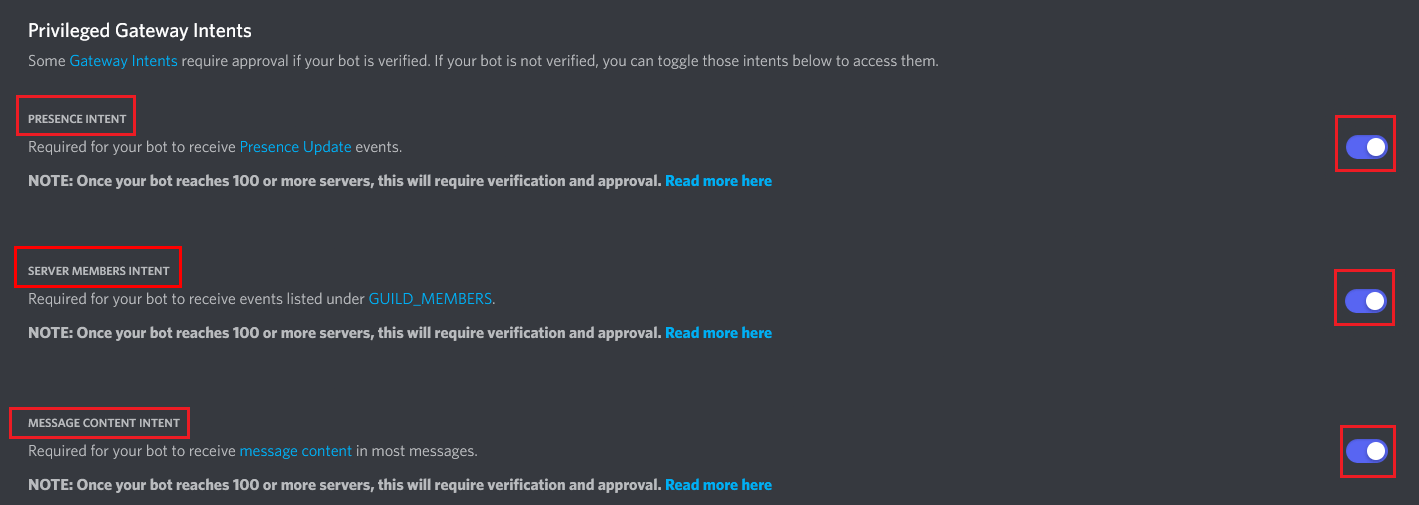
Warning
**Token is what gives you access to the Bot, do not share it with anyone and keep it safe!**
Warning
**You must Enable `Message Content Intent`, `Server Members Intent` and `Presence Intent` for the bot to work!**
All settings
#### `Enabled`
- **Description:**
This setting specifies if the Discord Bridge Chat Bot is enabled.
- **Available values:** `true` and `false`.
- **Type:** `boolean`
- **Default:** `false`
#### `Token`
- **Description:**
This is the token of your Discord bot.
- **Type:** `string`
#### `GuildId`
- **Description:**
This is the ID of your server/guild where you have invited the bot to.
- **Type:** `unsigned long`
#### `ChannelId`
- **Description:**
This is the ID of a channel on your server/guild where you want to interact with the bot.
- **Type:** `unsigned long`
#### `OwnersIds`
- **Description:**
This is a list of Discord user IDs which can interact with the bot.
- **Type:** `list/array of: unsigned long`
#### `Message_Send_Timeout`
- **Description:**
How long (in seconds) to wait for a message to be sent to Discord before giving up.
- **Type:** `integer`
- **Default:** `3`
#### `Allow_Other_Bot_Messages`
- **Description:**
When enabled, messages from other Discord bots in the channel are relayed to Minecraft chat. The bridge always ignores its own messages to prevent loops.
- **Available values:** `true` and `false`.
- **Type:** `boolean`
- **Default:** `false`
#### `PrivateMessageFormat`
- **Description:**
The format used when someone sends you a private message on the server.
Parts of the message between `{` and `}` are replaced by the Chat Bot at runtime; do not change them.
`{message}` is replaced with the message text, `{username}` with the sender's name, and `{timestamp}` with the current date and time.
For Discord message formatting, refer to [this guide](https://www.writebots.com/discord-text-formatting/).
- **Type:** `string`
- **Default:** `**[Private Message]** {username}: {message}`
#### `PublicMessageFormat`
- **Description:**
The format used when sending a public message to the Discord channel.
Parts of the message between `{` and `}` are replaced by the Chat Bot at runtime; do not change them.
`{message}` is replaced with the message text, `{username}` with the sender's name, and `{timestamp}` with the current date and time.
For Discord message formatting, refer to [this guide](https://www.writebots.com/discord-text-formatting/).
- **Type:** `string`
- **Default:** `{username}: {message}`
#### `TeleportRequestMessageFormat`
- **Description:**
The format used when someone sends you a teleport request.
Parts of the message between `{` and `}` are replaced by the Chat Bot at runtime; do not change them.
`{username}` is replaced with the requester's name.
For Discord message formatting, refer to [this guide](https://www.writebots.com/discord-text-formatting/).
- **Type:** `string`
- **Default:** `A new Teleport Request from **{username}**!`
## Discord RPC
- **Description:**
This Chat Bot shows your current Minecraft session as a Discord Rich Presence status. It displays information like the server address, your health, current dimension, coordinates, gamemode, and how long you have been connected.
Warning
**Discord RPC uses a local IPC socket to communicate with the Discord client. MCC and Discord must be running on the same machine for this to work.**
All settings
#### `Enabled`
- **Description:**
This setting specifies if the Discord RPC Chat Bot is enabled.
- **Available values:** `true` and `false`.
- **Type:** `boolean`
- **Default:** `false`
#### `ApplicationId`
- **Description:**
Your Discord Application ID. Create one at [discord.com/developers/applications](https://discord.com/developers/applications/).
- **Type:** `string`
#### `PresenceDetails`
- **Description:**
The top line of the Rich Presence display. Supports placeholders (see below).
- **Type:** `string`
- **Default:** `Playing on {server_host}:{server_port}`
#### `PresenceState`
- **Description:**
The second line of the Rich Presence display. Supports placeholders (see below).
- **Type:** `string`
- **Default:** `{dimension} - HP: {health}/{max_health}`
#### `LargeImageKey`
- **Description:**
The key of the large image asset uploaded to your Discord application. Leave empty to show no image.
- **Type:** `string`
- **Default:** `mcc_icon`
#### `LargeImageText`
- **Description:**
Tooltip text shown when hovering over the large image. Supports placeholders (see below).
- **Type:** `string`
- **Default:** `Minecraft Console Client`
#### `SmallImageKey`
- **Description:**
The key of the small image asset uploaded to your Discord application. Leave empty to hide the small image.
- **Type:** `string`
- **Default:** *(empty)*
#### `SmallImageText`
- **Description:**
Tooltip text shown when hovering over the small image. Supports placeholders (see below).
- **Type:** `string`
- **Default:** *(empty)*
#### `ShowServerAddress`
- **Description:**
Show the server address in the Discord presence. When set to `false`, `{server_host}` and `{server_port}` are replaced with `Hidden` and `****`.
- **Available values:** `true` and `false`.
- **Type:** `boolean`
- **Default:** `true`
#### `ShowCoordinates`
- **Description:**
Show your coordinates in the Discord presence. When set to `false`, `{x}`, `{y}`, and `{z}` are replaced with `?`.
- **Available values:** `true` and `false`.
- **Type:** `boolean`
- **Default:** `true`
#### `ShowHealth`
- **Description:**
Show health and food level in the Discord presence. When set to `false`, `{health}`, `{max_health}`, and `{food}` are replaced with `?`.
- **Available values:** `true` and `false`.
- **Type:** `boolean`
- **Default:** `true`
#### `ShowDimension`
- **Description:**
Show the current dimension in the Discord presence. When set to `false`, `{dimension}` is replaced with `Hidden`.
- **Available values:** `true` and `false`.
- **Type:** `boolean`
- **Default:** `true`
#### `ShowGamemode`
- **Description:**
Show the current gamemode in the Discord presence. When set to `false`, `{gamemode}` is replaced with `Hidden`.
- **Available values:** `true` and `false`.
- **Type:** `boolean`
- **Default:** `true`
#### `ShowElapsedTime`
- **Description:**
Show how long you have been connected to the server as an elapsed time in the Discord presence.
- **Available values:** `true` and `false`.
- **Type:** `boolean`
- **Default:** `true`
#### `ShowPlayerCount`
- **Description:**
Show the number of online players as a party size in the Discord presence.
- **Available values:** `true` and `false`.
- **Type:** `boolean`
- **Default:** `true`
#### `UpdateIntervalSeconds`
- **Description:**
How often (in seconds) to refresh the Discord presence. Minimum value is `1`.
Note: Discord itself only accepts presence updates once every 15 seconds, so setting this lower than `15` has no visible effect on the Discord side.
- **Type:** `integer`
- **Default:** `10`
______________________________________________________________________
#### Placeholders
The following placeholders can be used in `PresenceDetails`, `PresenceState`, `LargeImageText`, and `SmallImageText`:
| Placeholder | Description |
| ---------------- | ------------------------------------------------------------------------------- |
| `{server_host}` | Server hostname (masked if `ShowServerAddress` is `false`) |
| `{server_port}` | Server port (masked if `ShowServerAddress` is `false`) |
| `{username}` | Your Minecraft username |
| `{health}` | Current health (masked if `ShowHealth` is `false`) |
| `{max_health}` | Maximum health, always `20` (masked if `ShowHealth` is `false`) |
| `{food}` | Current food level (masked if `ShowHealth` is `false`) |
| `{dimension}` | Current dimension name, e.g. `Overworld` (masked if `ShowDimension` is `false`) |
| `{gamemode}` | Current gamemode, e.g. `Survival` (masked if `ShowGamemode` is `false`) |
| `{x}` | X coordinate (masked if `ShowCoordinates` is `false`) |
| `{y}` | Y coordinate (masked if `ShowCoordinates` is `false`) |
| `{z}` | Z coordinate (masked if `ShowCoordinates` is `false`) |
| `{player_count}` | Number of players currently online |
| `{protocol}` | Minecraft protocol version number |
## Farmer
Note
**You need to have [Terrain And Movements](configuration.md#terrainandmovements) and [Inventory Handling](configuration.md#inventoryhandling) enabled in order for this bot to work.**
Warning
**This bot is still experimental, has some known issues, and should be treated with extra caution on legacy versions.**
All settings
#### `Enabled`
- **Description:**
This setting specifies if the Farmer Chat Bot is enabled.
- **Available values:** `true` and `false`.
- **Type:** `boolean`
- **Default:** `false`
#### `Delay_Between_Tasks`
- **Description:**
This setting specifies the delay in seconds between each task performed by the bot.
- **Type:** `integer`
- **Default:** `1`
- **Minimum:** `1`
## Follow player
- **Description:**
This bot enables you to make a bot follow a specific player.
Note
**The bot can be slow at times, you need to walk with a normal speed and to sometimes stop for it to be able to keep up with you, it's similar to making animals follow you when you're holding food in your hand. This is due to a slow pathfinding algorithm, we're working on getting a better one. You can tweak the update limit and find what works best for you. (NOTE: Do not but a very low one, because you might achieve the opposite, this might clog the thread for terrain handling) and thus slow the bot even more.**
Note
**You need to have [terrainandmovements](configuration.md#terrainandmovements) and [entityhandling](configuration.md#entityhandling) enabled in order for this bot to work.**
All settings
#### `Enabled`
- **Description:**
This setting specifies if the Follow Player Chat Bot is enabled.
- **Available values:** `true` and `false`.
- **Type:** `boolean`
- **Default:** `false`
#### `Update_Limit`
- **Description:**
The rate at which the bot does calculations (second).
You can tweak this if you feel the bot is too slow.
- **Type:** `float`
- **Default:** `1.5`
#### `Stop_At_Distance`
- **Description:**
Do not follow the player if he is in the range of `X` blocks (prevents the bot from pushing a player in an infinite loop).
- **Type:** `float`
- **Default:** `3.0`
## Hangman
- **Description:**
Hangman game is one of the first bots ever written for MCC, to demonstrate ChatBot capabilities.
Create a file with words to guess (examples: [`words-en.txt`](https://github.com/MCCTeam/Minecraft-Console-Client/blob/master/MinecraftClient/config/hangman-en.txt), [`words-fr.txt`](https://github.com/MCCTeam/Minecraft-Console-Client/blob/master/MinecraftClient/config/hangman-fr.txt)) and set it in config inside the `[Hangman]` section.
Also set `enabled` to `true`, then, add your username in the `botowners` INI setting, and finally, connect to the server and use `/tell start` to start the game.
Note
**If the bot does not respond to bot owners, see the [Detecting chat messages](https://github.com/MCCTeam/Minecraft-Console-Client/tree/master/MinecraftClient/config#detecting-chat-messages) section.**
All settings
#### `Enabled`
- **Description:**
This setting specifies if the Hangman Chat Bot is enabled.
- **Available values:** `true` and `false`.
- **Default:** `false`
#### `English`
- **Description:**
This setting specifies if the Hangman Chat Bot should use English.
- **Available values:** `true` and `false`.
- **Default:** `true`
#### `FileWords_EN`
Note
**This settings file is for English and is not created by the default**
Note
**This settings file is for French and is not created by the default**
## Mailer
- **Description:**
Relay messages between players and servers, like a mail plugin.
This bot can store messages when the recipients are offline, and send them when they join the server.
The Mailer bot can store and relay mails much like Essential's `/mail` command.
- `/tell mail [RECIPIENT] [MESSAGE]`: Save your message for future delivery
- `/tell tellonym [RECIPIENT] [MESSAGE]`: Same, but the recipient will receive an anonymous mail
The bot will automatically deliver the mail when the recipient is online. The bot also offers a /mailer command from the MCC command prompt:
- `/mailer getmails`
Show all mails in the console.
- `/mailer addignored [NAME]`
Prevent a specific player from sending mails.
- `/mailer removeignored [NAME]`
Lift the mailer restriction for this player.
- `/mailer getignored`
Show all ignored players.
Warning
**The bot identifies players by their name (Not by UUID!). A nickname plugin or a Minecraft rename may cause mails going to the wrong player! Never write something to the bot you wouldn't say in the normal chat (You have been warned!).**
Warning
**Server admins can spoof PMs (`/tellraw`, `/nick`) so enable `RemoteControl` only if you trust server admins.**
Warning
This feature is new and experimental, it still requires a lot of testing and polish. Please leave your feedback on our Discord server.
Warning
The performance of task execution depends on how smart the LLM (Large Language Model) (e.g. Sonnet 4.6, GPT 5.4) and Harness/AI Agent (e.g. Claude Code) are.
Recommended harnesses / agents
- Claude Code
- Codex
- OpenCode
- Cursor
- Open Claw
Recommended models
Model rankings are based on the [Agentic Intelligence Benchmark](https://artificialanalysis.ai/?intelligence=agentic-index).
**Frontier (best results, higher cost):**
- [Claude Opus 4.6](https://openrouter.ai/anthropic/claude-opus-4.6)
- [GPT 5.4](https://openrouter.ai/openai/gpt-5.4)
- [GLM-5](https://openrouter.ai/z-ai/glm-5) -- cheapest in this tier
**Open-source (close to frontier, lower cost):**
- [MiMo-V2-Pro](https://openrouter.ai/xiaomi/mimo-v2-pro)
- [MiniMax M2.7](https://openrouter.ai/minimax/minimax-m2.7) -- cheapest in this tier
- [Kimi K2.5](https://openrouter.ai/moonshotai/kimi-k2.5)
**Budget (good for medium and simpler tasks):**
- [Google Gemini 3 Flash](https://openrouter.ai/google/gemini-3-flash-preview) -- recommended
- NVIDIA Nemotron 3 Super: [free tier](https://openrouter.ai/nvidia/nemotron-3-super-120b-a12b:free) / [paid tier](https://openrouter.ai/nvidia/nemotron-3-super-120b-a12b) / [NVIDIA Build](https://build.nvidia.com/nvidia/nemotron-3-super-120b-a12b) -- free tier may hit rate limits; your data is used for model training
- [DeepSeek V3.2](https://openrouter.ai/deepseek/deepseek-v3.2)
**Ultra-budget (for very simple tasks):**
- [Google Gemini 3.1 Flash Lite Preview](https://openrouter.ai/google/gemini-3.1-flash-lite-preview)
- **Settings:**
**Section:** **`ChatBot.McpServer`**
Quick start
1. Enable `ChatBot.McpServer`.
2. Set `Transport.RequireAuthToken = true`.
3. Export a token before starting MCC:
```bash
export MCC_MCP_AUTH_TOKEN="replace-me"
```
4. Leave `Transport.BindHost = "127.0.0.1"` unless you intentionally want to expose the endpoint to other machines.
5. Start MCC and join a Minecraft server.
6. Connect your AI client to `http://127.0.0.1:33333/mcp`.
The embedded host starts after the bot joins the game, not at process launch.
Tool availability still depends on MCC runtime support. Movement, inventory, and entity tools need the corresponding MCC features to be available for the current version and session.
Recommended config
```toml
[ChatBot.McpServer]
Enabled = true
Transport = { BindHost = "127.0.0.1", Port = 33333, Route = "/mcp", RequireAuthToken = true, AuthTokenEnvVar = "MCC_MCP_AUTH_TOKEN" }
Capabilities = { SessionStatus = true, ChatAndCommands = true, Movement = true, Inventory = true, EntityWorld = true }
```
For a local setup, keeping the bind host on `127.0.0.1` is the safest default.
We recommend enabling bearer-token protection and exporting the token before starting MCC:
```bash
export MCC_MCP_AUTH_TOKEN="replace-me"
```
All settings
#### `Enabled`
- **Description:**
Enables or disables the built-in MCP server bot.
- **Type:** `boolean`
- **Default:** `false`
#### `Transport.BindHost`
- **Description:**
Hostname or IP address the embedded HTTP server binds to.
Use `127.0.0.1` for local-only access. Binding to `0.0.0.0` exposes the endpoint to your network.
- **Type:** `string`
- **Default:** `127.0.0.1`
#### `Transport.Port`
- **Description:**
TCP port used by the embedded HTTP MCP server.
- **Type:** `integer`
- **Default:** `33333`
#### `Transport.Route`
- **Description:**
HTTP path used by the MCP endpoint.
- **Type:** `string`
- **Default:** `/mcp`
#### `Transport.RequireAuthToken`
- **Description:**
Require an `Authorization: Bearer ...` header before clients can use the server.
Recommended: `true`
- **Type:** `boolean`
- **Default:** `false`
#### `Transport.AuthTokenEnvVar`
- **Description:**
Environment variable name MCC reads when bearer-token auth is enabled.
- **Type:** `string`
- **Default:** `MCC_MCP_AUTH_TOKEN`
#### `Capabilities.SessionStatus`
- **Description:**
Enables session, server, chat-history, event-history, reference, and status-reporting tools.
- **Type:** `boolean`
- **Default:** `true`
#### `Capabilities.ChatAndCommands`
- **Description:**
Enables chat sending, internal command execution, respawn, disconnect, quit, and related direct-control tools.
- **Type:** `boolean`
- **Default:** `true`
#### `Capabilities.Movement`
- **Description:**
Enables movement, path preview, look, reachability, and nearby block/player queries.
- **Type:** `boolean`
- **Default:** `true`
#### `Capabilities.Inventory`
- **Description:**
Enables inventory snapshots, container open/close, window actions, item selection, item use, drop, deposit, and withdraw tools.
- **Type:** `boolean`
- **Default:** `true`
#### `Capabilities.EntityWorld`
- **Description:**
Enables entity queries, sign search, block lookup, nearby dropped-item listing, and item pickup helpers.
- **Type:** `boolean`
- **Default:** `true`
The client examples below assume the default local endpoint `http://127.0.0.1:33333/mcp`.
The recommended setup is to keep `RequireAuthToken = true`. If you temporarily disable auth for local testing, you can omit the auth-header parts.
Claude Code
Official docs: [Claude Code MCP](https://code.claude.com/docs/en/mcp)
These commands assume the default local MCC endpoint:
```bash
claude mcp add --transport http mcc http://127.0.0.1:33333/mcp
claude mcp list
```
If you enabled bearer-token auth in MCC:
```bash
claude mcp add --transport http mcc http://127.0.0.1:33333/mcp \
--header "Authorization: Bearer $MCC_MCP_AUTH_TOKEN"
```
You can check the server status inside Claude Code with `/mcp`.
Codex
Official docs: [OpenAI Docs MCP quickstart](https://developers.openai.com/learn/docs-mcp)
Add the MCC server with the Codex CLI:
```bash
codex mcp add mcc --url http://127.0.0.1:33333/mcp
codex mcp list
```
You can also place it directly in `~/.codex/config.toml`:
```toml
[mcp_servers.mcc]
url = "http://127.0.0.1:33333/mcp"
```
If your Codex setup supports custom MCP headers, add the same `Authorization: Bearer ...` header you use in the other examples.
Cursor
Official docs: [Cursor MCP docs](https://docs.cursor.com/en/tools/mcp)
Create `~/.cursor/mcp.json` and add:
```json
{
"mcpServers": {
"mcc": {
"url": "http://127.0.0.1:33333/mcp"
}
}
}
```
Restart Cursor after saving the file.
If your Cursor setup uses auth headers for remote MCP servers, add `Authorization: Bearer ...` with your MCC token.
OpenCode
Official docs: [OpenCode MCP servers](https://opencode.ai/docs/mcp-servers)
Put this in `~/.config/opencode/opencode.json` for a global setup, or in `opencode.json` in your project root:
```json
{
"$schema": "https://opencode.ai/config.json",
"mcp": {
"mcc": {
"type": "remote",
"url": "http://127.0.0.1:33333/mcp",
"enabled": true
}
}
}
```
If you enabled bearer-token auth in MCC, add headers like this:
```json
{
"$schema": "https://opencode.ai/config.json",
"mcp": {
"mcc": {
"type": "remote",
"url": "http://127.0.0.1:33333/mcp",
"enabled": true,
"oauth": false,
"headers": {
"Authorization": "Bearer {env:MCC_MCP_AUTH_TOKEN}"
}
}
}
}
```
Available MCP tools
These are the tools currently exposed by `ChatBot.McpServer`.
**Session, status, and reference**
- `mcc_session_status`: Get the current MCC session state and feature availability.
- `mcc_server_info`: Get the active server connection info and current TPS.
- `mcc_player_state`: Get the current controlled-player state.
- `mcc_world_state`: Get world state, chunk loading progress, and last observed time and weather values.
- `mcc_chunk_status`: Check chunk loading status for the player location or a target coordinate.
- `mcc_player_stats`: Get player stats, orientation, and current location.
- `mcc_status_effects`: List active player status effects.
- `mcc_loaded_bots`: List loaded built-in bots and scripts.
- `mcc_internal_commands_list`: List available MCC internal commands.
- `mcc_agent_guidance`: Return the MCC MCP operator prompt bundle for external agents.
- `mcc_materials_list`: List known MCC material names.
- `mcc_block_types_list`: List known MCC block types.
- `mcc_entity_types_list`: List known MCC entity types.
- `mcc_world_block_at`: Get block information at a world coordinate.
**Observed state**
- `mcc_recent_events`: Read recent high-signal runtime events such as weather, titles, death, respawn, inventory open/close, and joins/leaves.
- `mcc_chat_history`: Read recent chat and system lines seen by MCC.
- `mcc_players_list`: List online players known to MCC.
- `mcc_players_detailed`: List tracked players with UUID, latency, gamemode, and coordinates when available.
**Chat and direct control**
- `mcc_send_chat`: Send chat text or a slash command to the server.
- `mcc_quit_client`: Quit MCC cleanly.
- `mcc_disconnect`: Disconnect MCC from the server without quitting the process.
- `mcc_respawn`: Respawn the controlled player when dead.
- `mcc_run_internal_command`: Run an MCC internal command.
- `mcc_animation`: Play a hand-swing animation.
- `mcc_toggle_sneak`: Start or stop sneaking.
- `mcc_toggle_sprint`: Start or stop sprinting.
- `mcc_change_hotbar_slot`: Change the active hotbar slot.
- `mcc_select_item`: Select a hotbar item by item type.
- `mcc_use_item_on_hand`: Use the currently held item.
- `mcc_use_item_on_block`: Use the held item on a target block.
- `mcc_dig_block`: Dig a block at a target location.
- `mcc_place_block`: Place the currently held block or item at a target location.
**Movement, view, and nearby queries**
- `mcc_raycast_block`: Raycast from the player's view and return the first non-air block hit.
- `mcc_path_preview`: Compute a path without moving there.
- `mcc_block_scan`: Scan nearby blocks around the player.
- `mcc_blocks_find`: Find nearby blocks by name, type, or ID.
- `mcc_player_nearby`: Check whether a player is nearby.
- `mcc_player_locate`: Locate a tracked player by name.
- `mcc_entity_nearest`: Find the nearest tracked entity that matches the requested filters.
- `mcc_can_reach_position`: Check whether MCC can path to a coordinate without moving there.
- `mcc_move_to`: Path to a world coordinate and verify arrival.
- `mcc_move_to_player`: Locate a tracked player, move to them, and verify arrival.
- `mcc_look_at`: Rotate the view toward a world coordinate.
- `mcc_look_direction`: Rotate the view to a cardinal direction or straight up/down.
- `mcc_look_angles`: Rotate the view to explicit yaw and pitch angles.
**Inventory and container workflows**
- `mcc_inventory_snapshot`: Read a snapshot of one inventory.
- `mcc_inventory_search`: Search the player inventory and optionally open containers for matching items.
- `mcc_inventories_list`: List open inventories and containers known to MCC.
- `mcc_container_open_at`: Open a container block at world coordinates and wait for its inventory.
- `mcc_container_close`: Close an open non-player container.
- `mcc_inventory_window_action`: Perform a window action on an inventory slot.
- `mcc_inventory_drop_item`: Drop an exact item count from an inventory.
- `mcc_container_deposit_item`: Move items from the player inventory into an open container.
- `mcc_container_withdraw_item`: Move items from an open container into the player inventory.
**Entities, signs, and dropped items**
- `mcc_entities_query`: Query tracked entities.
- `mcc_entities_list`: List tracked entities with optional filters.
- `mcc_entity_info`: Get detailed info for one tracked entity.
- `mcc_entity_interact`: Interact with a tracked entity.
- `mcc_entity_attack`: Attack a tracked entity.
- `mcc_signs_find`: Find nearby signs by text.
- `mcc_items_list`: List nearby dropped item entities.
- `mcc_items_pickup`: Move to and pick up nearby dropped items of a given type.
Simple example usage
Once your client is connected, keep the prompts simple and concrete.
- `What server is MCC connected to right now?`
- `List online players and tell me whether Steve is nearby.`
- `Preview a path to 10 80 0. If the path looks valid, move there.`
- `Show my player inventory, then open the chest at 2 80 0 and tell me what is inside.`
- `List nearby dropped Stone items and pick them up.`
- `Find the nearest ArmorStand and show me its details.`
## Map
- **Description:**
This Chat Bot allows you to render items maps in the console, to `.bmp` images and to relay them to Discord using the [Discord Bridge](#discord-bridge) Chat Bot.
This is useful for solving captchas on servers which require it, or saving the map art into an image.
The maps are **rendered** into `Rendered_Maps` folder which will be auto created in the same folder where the client executable is located.
- **Commands:**
When enabled will add the `/maps` command.
**Usage**:
```
/maps > | maps >
```
- **Settings:**
**Section:** **`ChatBot.Map`**
All settings
#### `Enabled`
- **Description:**
This setting specifies if the Map Chat Bot is enabled.
- **Available values:** `true` and `false`.
- **Type:** `boolean`
- **Default:** `false`
#### `Render_In_Console`
- **Description:**
This setting specifies if the Map Chat Bot should render the map in the console.
It is recommended to use something like Power Shell for the best map quality (at least for Windows users).
- **Available values:** `true` and `false`.
- **Type:** `boolean`
- **Default:** `true`
#### `Save_To_File`
Warning
**If you want the Discord relay feature, you must enable this setting!**
Warning
**On some versions older than 1.17 this could cause some performance issue on older hardware if there a lot of maps being rendered, since map updates are sent multiple times a second. Be careful.**
Note
**The bigger the size, the less is the quality.**
Tip
**For upscaling your maps you could use (getting a bit better quality): https://deepai.org/machine-learning-model/torch-srgan**
Note
**Might be a bit slow on less powerful systems when rendering a lot of maps. Lower down the resolution if you have any performance issues. If your system is not that powerful and can't handle it, use external tools for upscaling and resizing.**
Warning
**The [Discord Bridge](#discord-bridge) Chat Bot must be enabled and configured!**
Warning
**You need to enable `Save_To_File` in order for this to work.**
Note
**Sometimes when the client connects, the [Discord Bridge](#discord-bridge) will be loaded a tiny bit after. Rendered map images are queued up and sent in order as soon as the [Discord Bridge](#discord-bridge) is ready and connected.**
## PlayerList Logger
- **Description:**
Log the list of players periodically into a textual file.
- **Settings:**
**Section:** **`ChatBot.PlayerListLogger`**
All settings
#### `Enabled`
- **Description:**
This setting specifies if the PlayerList Logger Chat Bot is enabled.
- **Available values:** `true` and `false`.
- **Default:** `false`
#### `File`
- **Description:**
This setting specifies the name of the player list Log file that will be created.
- **Default:** `playerlog.txt`
#### `Delay`
- **Description:**
Save the list of players every how many seconds.
- **Type:** `float`
- **Default:** `60.0`
## Remote Control
- **Description:**
Send MCC console commands to your bot through server PMs (`/tell`).
You need to have [ChatFormat](configuration.md#chat-format) working correctly and add yourself in [botowners](configuration.md#botowners) to use the bot.
Warning
**Server admins can spoof PMs (`/tellraw`, `/nick`) so enable `RemoteControl` only if you trust server admins.**
All settings
#### `Enabled`
- **Description:**
This setting specifies if the Remote Control Chat Bot is enabled.
- **Available values:** `true` and `false`.
- **Type:** `boolean`
- **Default:** `false`
#### `AutoTpaccept`
- **Description:**
This setting specifies if the Remote Control Chat Bot should automatically accept teleport requests.
- **Available values:** `true` and `false`.
- **Type:** `boolean`
- **Default:** `true`
#### `AutoTpaccept_Everyone`
- **Description:**
This setting specifies if the Remote Control Chat Bot should automatically accept teleport requests from everyone.
- **Available values:** `true` and `false`.
- **Type:** `boolean`
- **Default:** `false`
## Replay Capture
- **Description:**
Enable automatic recording of the game and replay it later using the Replay Mod (https://www.replaymod.com/).
Use `/replay save` to create a snapshot replay file while recording, and `/replay stop` to finalize the active recording.
Warning
**Use `/replay stop` or exit MCC gracefully with `/quit` so the replay file can be finalized cleanly.**
Note
**Please note that due to technical limitations, the client player (you) will not be shown in the replay file**
Note
**Each MCC instance uses its own temporary replay cache, so multiple MCC clients can record from the same folder without overwriting each other.**
All settings
#### `Enabled`
- **Description:**
This setting specifies if the Replay Mod Chat Bot is enabled.
- **Available values:** `true` and `false`.
- **Type:** `boolean`
- **Default:** `false`
#### `Backup_Interval`
- **Description:**
This setting specifies the time interval in seconds when the replay file should be auto-saved.
Use `-1` to disable.
- **Type:** `float`
- **Default:** `300.0`
## Script Scheduler
- **Description:**
Schedule commands and scripts to launch on various events such as server join, date/time or time interval.
- **Settings:**
**Section:** **`ChatBot.ScriptScheduler`**
All settings
#### `Enabled`
- **Description:**
This setting specifies if the Script Scheduler Chat Bot is enabled.
- **Available values:** `true` and `false`.
- **Type:** `boolean`
- **Default:** `false`
### Defining a task
Tip
**It is recommended that you align subsections to the right by one tab or 4 spaces for better readability.**
## Telegram Bridge
- **Description:**
This bot allows you to send and receive messages and commands via a Telegram Bot DM or to receive messages in a Telegram channel.
Warning
**You can't send messages and commands from a group channel, you can only send them in the bot DM, but you can get the messages from the client in a group channel.**
Danger
**Do not share your API key with anyone else as it will give them the control over your bot. Save it securely.**
Danger
**If you do not add the id of your chat DM with the bot to the "Authorized_Chat_Ids" field, ayone who finds your bot via search will be able to execute commands and send messages!**
Danger
**An id pasted in to the "Authorized_Chat_Ids" should be a number/long, not a string!**
All settings
#### `Enabled`
- **Description:**
This setting specifies if the Telegram Bridge Chat Bot is enabled.
- **Available values:** `true` and `false`.
- **Type:** `boolean`
- **Default:** `false`
#### `Token`
- **Description:**
Your Telegram Bot token.
- **Type:** `string`
- **Default:** empty
#### `ChannelId`
- **Description:**
An ID of a channel where you want to interact with the MCC using the bot.
- **Type:** `string`
- **Default:** empty
#### `Authorized_Chat_Ids`
- **Description:**
A list of Chat IDs that are allowed to send messages and execute commands.
To get an id of your chat DM with the bot use `.chatid` bot command in Telegram.
- **Type:** `array of strings`
- **Default:** empty
#### `Message_Send_Timeout`
- **Description:**
How long to wait (in seconds) if a message can not be sent to Telegram before canceling the task (minimum 1 second).
- **Type:** `integer`
- **Default:** 3
**Message Formats**
Words wrapped with `{` and `}` are going to be replaced during the code execution, do not change them!
For example, `{message}` is going to be replace with an actual message, `{username}` will be replaced with an username, `{timestamp}` with the current time.
For Telegram message formatting, check the [following](https://mccteam.github.io/r/tg-fmt.html).
#### `PrivateMessageFormat`
- **Description:**
A format that is used to display a private chat message on the minecraft server, in a Telegram channel.
- **Type:** `string`
- **Default:** `*(Private Message)* {username}: {message}`
#### `PublicMessageFormat`
- **Description:**
A format that is used to display a public chat message on the minecraft server, in a Telegram channel.
- **Type:** `string`
- **Default:** `{username}: {message}`
#### `TeleportRequestMessageFormat`
- **Description:**
A format that is used to display a teleport request on the minecraft server, in a Telegram channel.
- **Type:** `string`
- **Default:** `A new Teleport Request from **{username}**!`
## Items Collector
- **Description:**
Collect items on the ground using this Chat Bot.
- **Settings:**
**Section:** **`ChatBot.ItemsCollector`**
All settings
#### `Enabled`
- **Description:**
This setting specifies if the Items Collector chat bot is enabled.
- **Available values:** `true` and `false`.
- **Type:** `boolean`
- **Default:** `false`
#### `Collect_All_Item_Types`
- **Description:**
Specifies if the bot will collect all items, regardless of their type.
If you want to use the whitelisted item types, disable this by setting it to `false`.
- **Available values:** `true` and `false`.
- **Type:** `boolean`
- **Default:** `false`
#### `Items_Whitelist`
- **Description:**
In this list you can specify which items the bot will collect.
To enable this, set the `Collect_All_Item_Types` to false.
Note
**This does not prevent the bot from accidentally picking up other items, it only goes to positions where it finds the whitelisted items**